Quick start
Six steps from free trial to an AI that remembers.
1. Get your 7-day free license
orkai requires a license even for the trial. Start here — no subscription, one device, $0 checkout.
- Open Pricing and click Start 7-day free trial.
- Complete checkout on Polar (merchant of record).
- Polar emails a receipt shortly after checkout — continue with step 2 once it lands to retrieve your key.
Prefer to buy outright? Choose Single device ($49.99) or Three devices ($99) on the same page — the steps below are identical, only the key type differs.
2. Get your license key from the Polar email
Polar sends a receipt email within a few minutes. The email does not include
your key inline — click the Access Purchase button in the email to view your
ORKAI_ key on Polar's dashboard. The email also does not include a
download — binaries are always public.
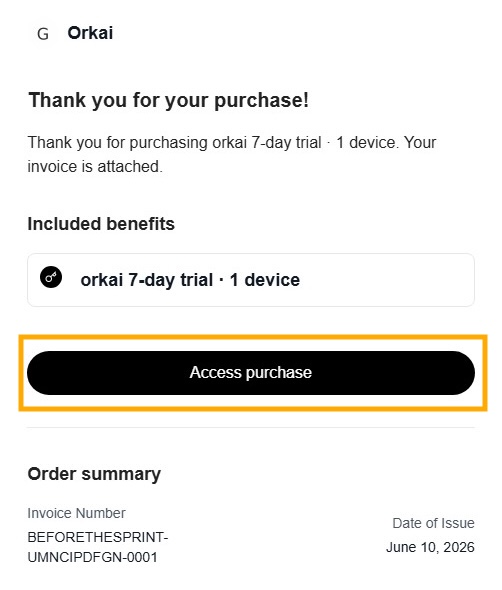
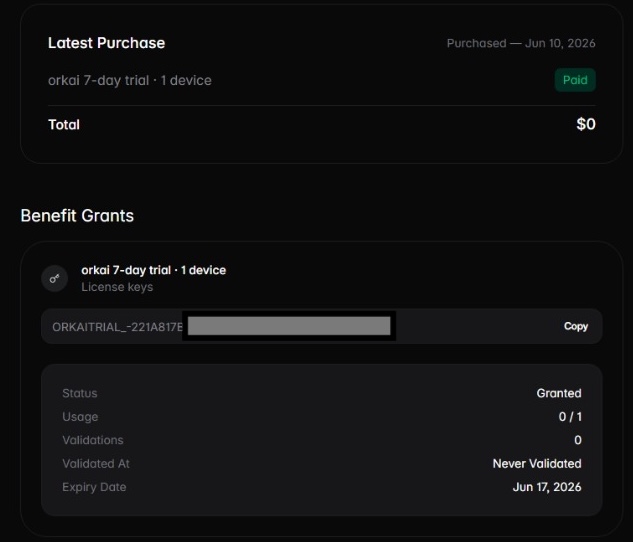
You can install orkai anytime from Install (step 3).
Wait for the key before running orkai activate.
Didn't receive the email? Check spam, then email support@getorkai.com.
3. Install orkai and activate on this machine
Download is public — use the install guide (one-liner script or manual
binaries from
OrkaiOS/installer).
Then activate with the key from step 2. Device cap depends on your plan (1 or 3 machines). A license
is required for serve, index, and other write/compute
commands.
Full options on Install. Binaries are published on OrkaiOS/installer. Installing does not grant a license — activate after checkout.
macOS and Linux
Run the install script (downloads from OrkaiOS/installer on GitHub):
curl -fsSL https://raw.githubusercontent.com/OrkaiOS/installer/main/scripts/install.sh | bashWindows (PowerShell)
Run the install script:
irm https://raw.githubusercontent.com/OrkaiOS/installer/main/scripts/install.ps1 | iexManual download
Or pick your platform binary from the installer repo on GitHub, make it executable, and move it onto your PATH.
orkai versionActivate your license
After install, activate with the key from your email:
orkai activate ORKAI_YOUR_KEY_HERE- Installing orkai does not include a license. Get a key at getorkai.com/pricing (trial or paid).
- Polar emails a receipt with an 'Access Purchase' button — the key is not inline. Install is always at getorkai.com/docs/install.
- After checkout, Polar emails a receipt. The email does NOT include your key inline — click the 'Access Purchase' button in the email to view your key on Polar's dashboard. Keys start with ORKAI_ (trial keys may use ORKAITRIAL_).
- Device cap depends on plan: trial and single-device = 1 machine; three-device = 3.
- Upgrade from trial: run orkai activate with your paid key; it replaces the trial in ~/.orkai/license.json.
Verify with orkai license status — it should show your plan tier, device cap, and expiry/grace state.
4. Set up and start the daemon
First start writes default ~/.orkai/config.yaml (embeddings set to
none), starts the daemon, and opens the web setup hub at
/setup. Choose an embedding provider there (Ollama, Voyage, OpenAI, or
bring-your-own vectors), then Save and restart.
First run — start and web setup
orkai start
# writes defaults, starts the background daemon, opens /setup
# finish Embeddings in the browser, then Save and restart
Without activation from step 3, orkai refuses to start. Headless TTY first-run:
orkai setup --terminal. After unlock,
orkai config embedding still works.
Every day after — keep the daemon running
orkai start    # background daemon — stays up on macOS/Linux
orkai stop     # stop when you need to
orkai status   # confirm it is running
Prefer start over serve for normal use.
serve ties up a terminal with live logs; start keeps orkai
running in the background while you work. Use orkai logs -f when you want to tail
output without blocking a shell.
- Live ports are written to
~/.orkai/runtime.jsonwhen auto-fallback occurs. - Open the local UI with
orkai openwhile the daemon is running. - In a project folder, run
orkai initbefore connecting an editor.
5. Connect your AI — orkai mcp-config
With the daemon running (orkai start — or orkai serve while debugging),
print config for your client:
orkai mcp-config                  # every client (default)
orkai mcp-config --client cursor # Cursor-only JSON
Each AI client needs a different config shape — Cursor uses native SSE; Claude Desktop needs an
mcp-remote bridge; Claude Code, Codex, and OpenCode each have their own file
format. See MCP — connect your AI for step-by-step instructions per client.
6. You're ready
Open your AI assistant and start a session. A well-configured agent calls
overview() first — recent sessions, standards, skills, and tools scoped to your
project.
Your agent can now save documents, preferences, and session summaries on your machine — structured context that persists across chats.
Optional — index a folder
Point orkai at any local directory — a code repo, research folder, or analyst folder with CSVs and PDFs, or notes on your Desktop. See Projects & indexing.
cd /path/to/your/folder
orkai init
orkai index .              # code + documents + analytics (default)
orkai index document .     # documents only
orkai index analytics .    # spreadsheets only
Next reads
- Review — code, documents, or CSVs with
mode: project - Daemon & MCP —
start,stop,status,top - Terms and Privacy
- Why orkai